Tethering gear for headshot days: cables, hubs, stands and backups
The tethering kit we pack for on-site headshots, from the right USB cable length to cable locks, laptop stands, power and a backup plan for when something fails.
Most tether failures aren't software at all. They're a cable pulled half out of a port, a hub that can't keep up, or a laptop that went to sleep. Here's the kit we bring to every headshot day and why.
The cable
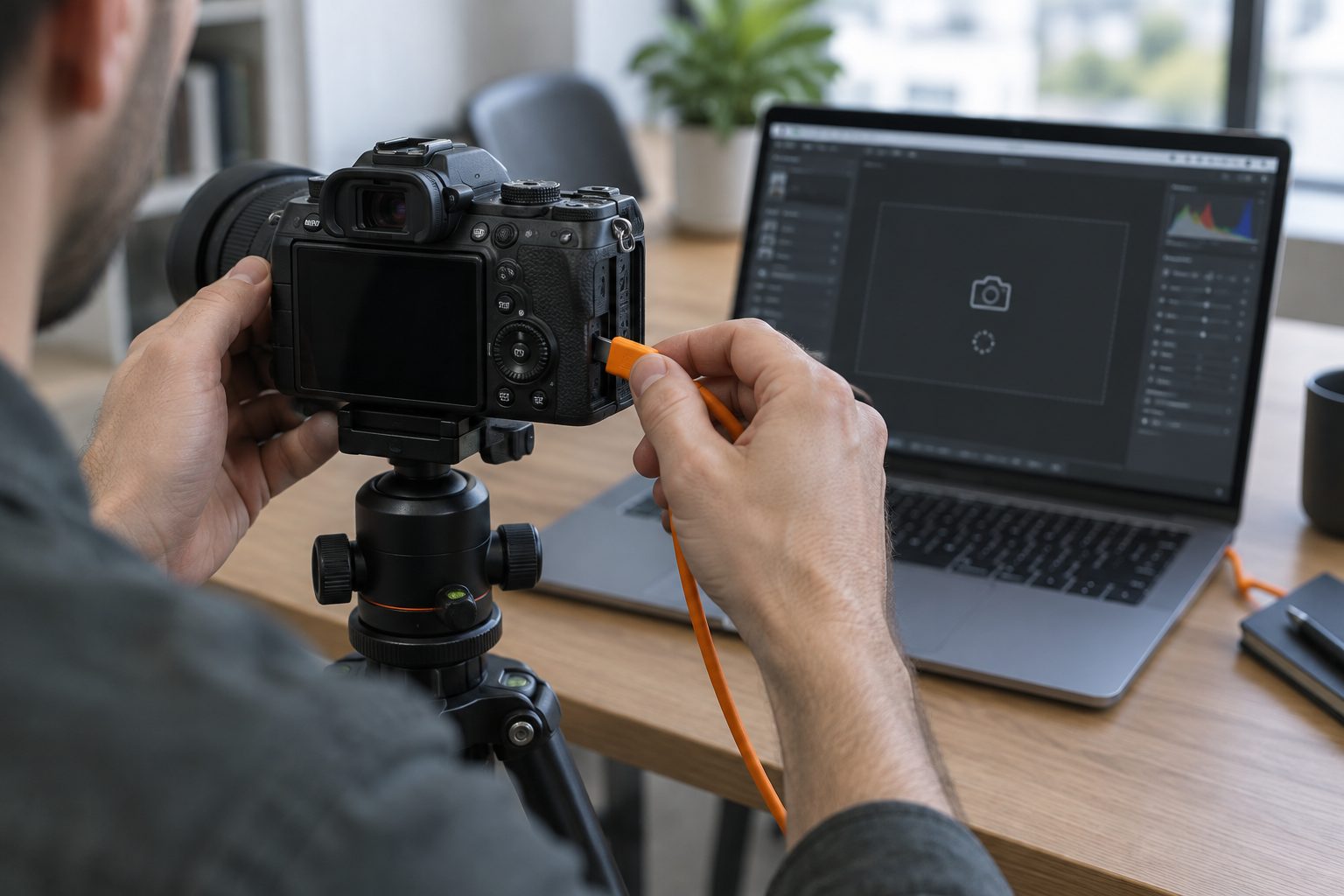
Use a proper tether cable, not the one in the camera box. Tether cables are usually longer, have stronger connectors and come in bright colors so nobody trips on them.
- Length: for USB 2.0 connections, about 5 m (16 ft) is the practical maximum for a passive cable. For USB 3 and USB-C, keep passive cables to about 3 m (10 ft) or less. Longer than that, use an active (powered) extension, not two cables joined together.
- Connector: match the camera's port exactly (USB-C, Micro-B USB 3, Mini USB). A loose adapter in the middle is a common point of failure.
- Bright color: orange or yellow cables are the industry habit for a reason. They're visible on dark carpet.
- Spare: always carry a second, tested cable. Cables fail silently and suddenly.
Keep it plugged in
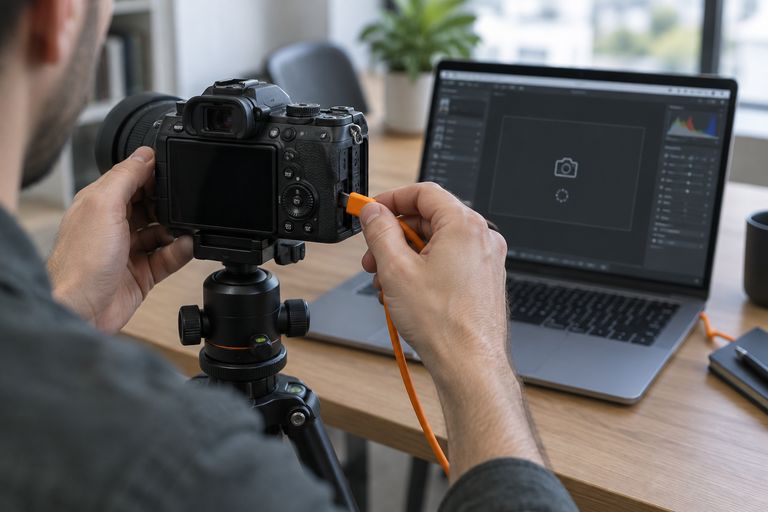
- Cable lock on the camera: a small clamp that screws into the tripod socket or hot shoe and grips the cable, so a tug pulls the clamp, not the port.
- Cable lock on the laptop side: a strap or clip on the laptop stand stops the other end working loose.
- Route the cable along the floor under a mat or taped down where people walk.
Laptop, stand and power
- Laptop: any recent machine with a fast SSD is fine. Fill the drive less than 80% and close everything that syncs or updates.
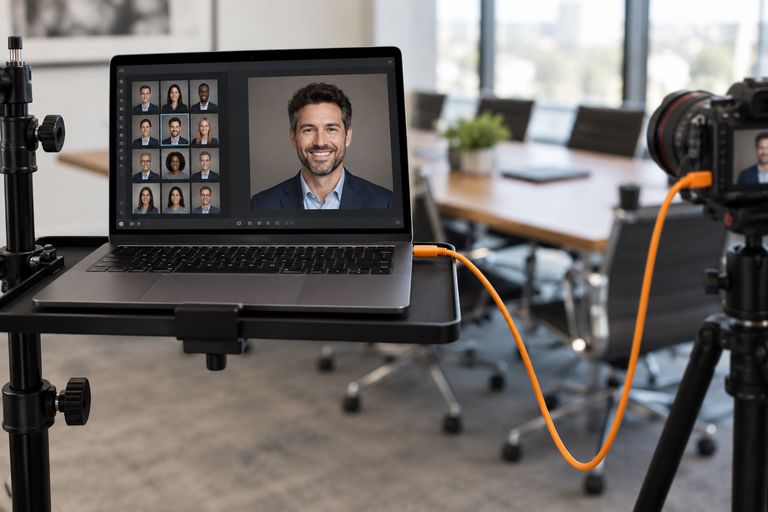
- Tether table or stand: a small platform on a light stand keeps the laptop at eye height next to you, off the floor and away from coffee.
- Power: plug the laptop into mains, set it never to sleep, and bring an extension lead long enough to reach the wall. Many venues put sockets in the wrong place.
- Camera power: use a dummy battery (AC coupler) if your camera supports it, or keep two charged batteries on hand.
- Hub: avoid hubs for the camera if you can. If you must use one, use a powered hub and plug the camera directly into it, not daisy-chained.
Show the sitter
A second screen facing the sitter makes a huge difference to how they feel about the session. Options:
- A portable monitor on a stand.
- An iPad showing the latest frames. This is the setup we prefer, because the sitter can also pick their favorite on it at the end.
- A TV, if the venue has one. Test the HDMI before the line starts.
The backup plan
- Dual card slots: record to both, or at least one, so a failed tether never loses images.
- Rehearse the fallback: if the tether dies, shoot to card and import between sitters. Know the steps before you need them.
- Test the whole chain on the morning: camera, cable, software, folder, sitter screen. Fire a few frames at your assistant.
- Back up during the day. Copy the capture folder to an external SSD at breaks.
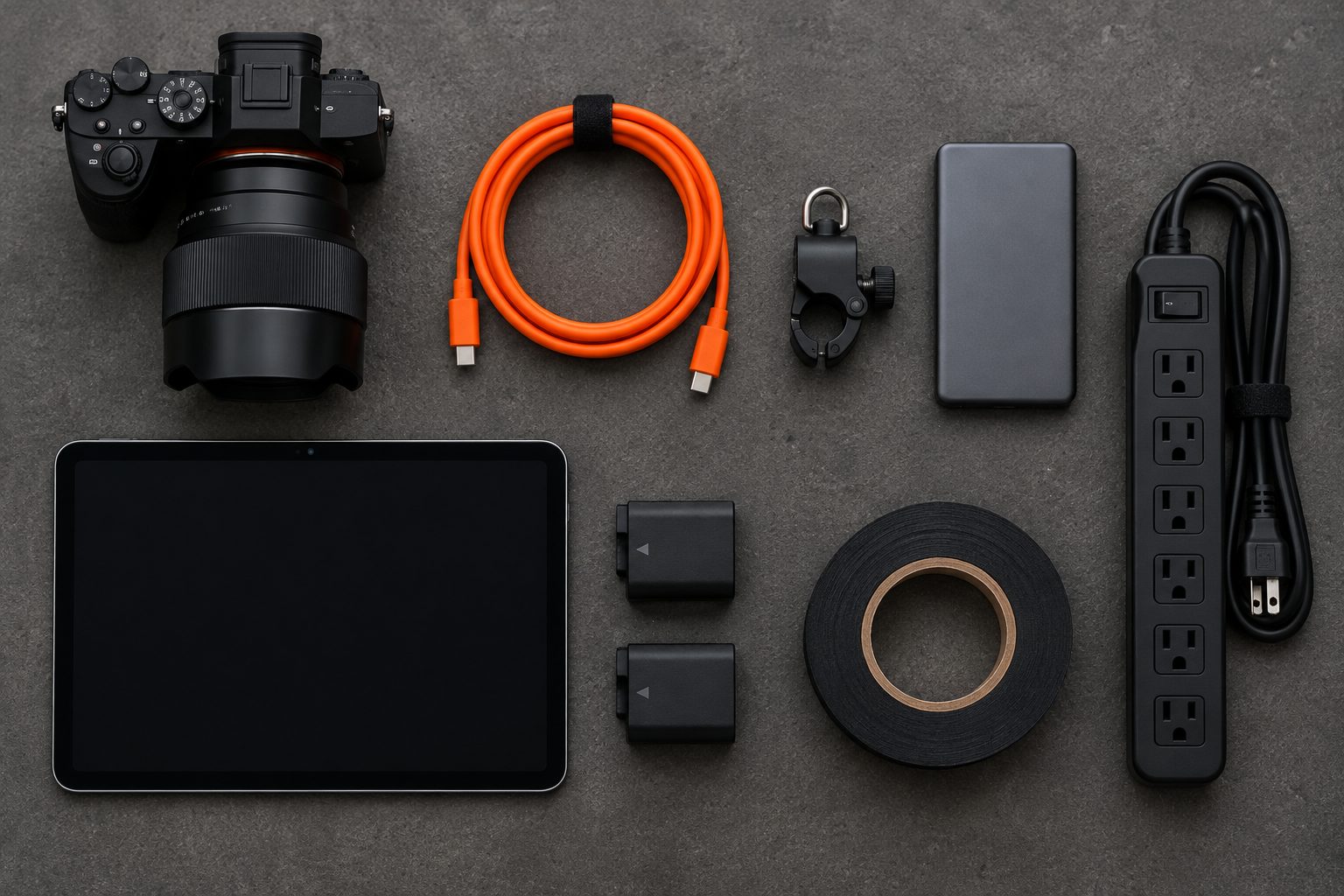
Our packing list
- Two tether cables (one tested spare), plus an active extension if the layout needs it
- Cable locks for camera and laptop
- Laptop, charger, extension lead and power strip
- Tether table and light stand
- iPad or monitor for the sitter, with its own charger
- Dummy battery or spare camera batteries
- External SSD for backups
- Gaffer tape
FAQ
What's the longest tether cable I can use?
As a rule of thumb, about 5 m for a passive USB 2.0 cable and about 3 m for passive USB 3 or USB-C. Beyond that, use an active extension cable so the signal stays reliable.
Why does my tether keep disconnecting?
The usual causes are a loose or damaged cable, a cable that's too long, a laptop or camera going to sleep, camera Wi-Fi interfering, or an unpowered hub. Swap the cable first, plug directly into the laptop, and disable sleep and auto power-off.
Can I tether wirelessly?
Some cameras and apps support Wi-Fi tethering, and it's handy for portraits. For fast headshot days we still prefer a cable: it's faster and doesn't depend on venue Wi-Fi.