The best tethering software for headshot photographers
Lightroom Classic, Capture One, Smart Shooter, the free camera-maker apps and more, compared for fast headshot days with a line of people waiting.
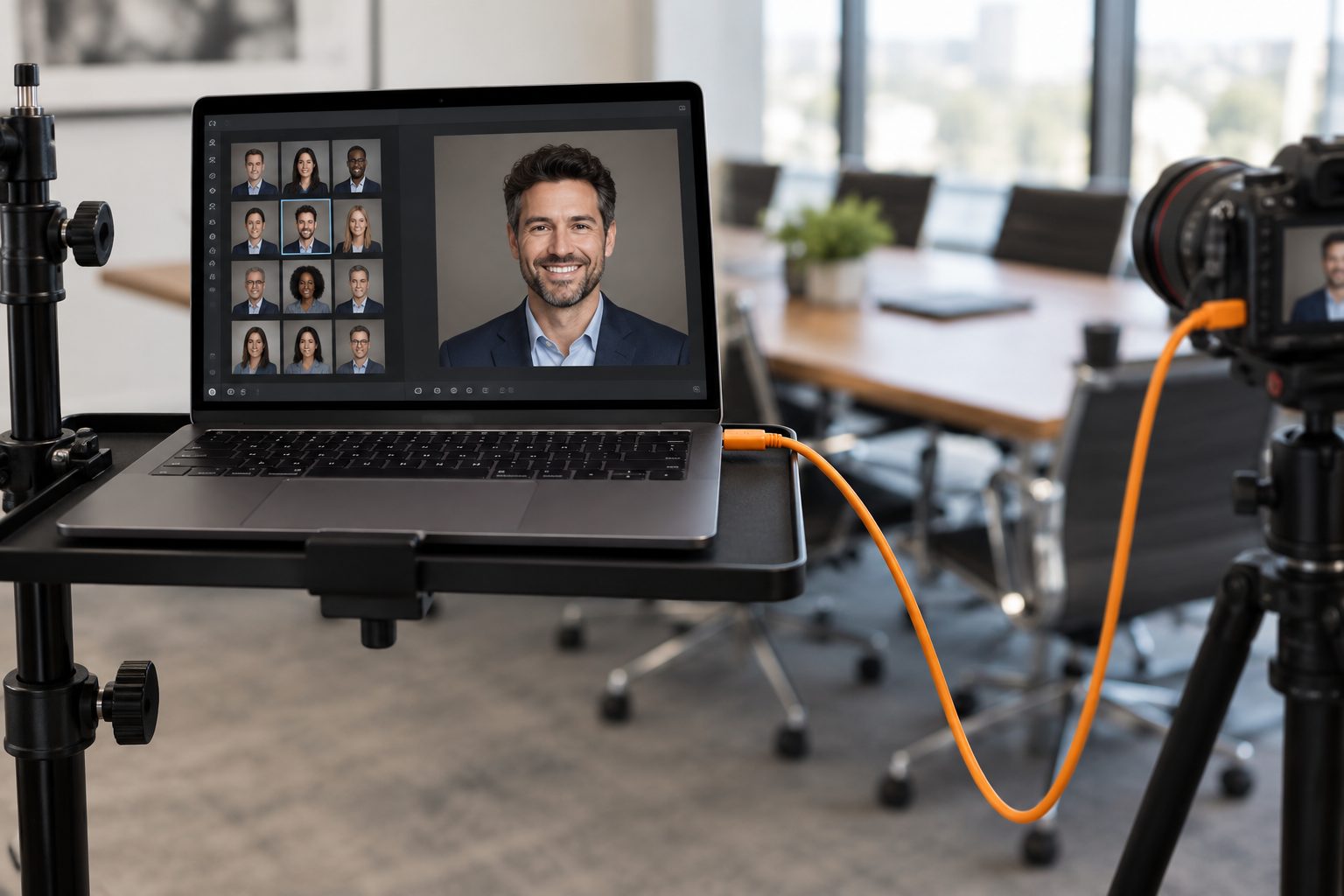
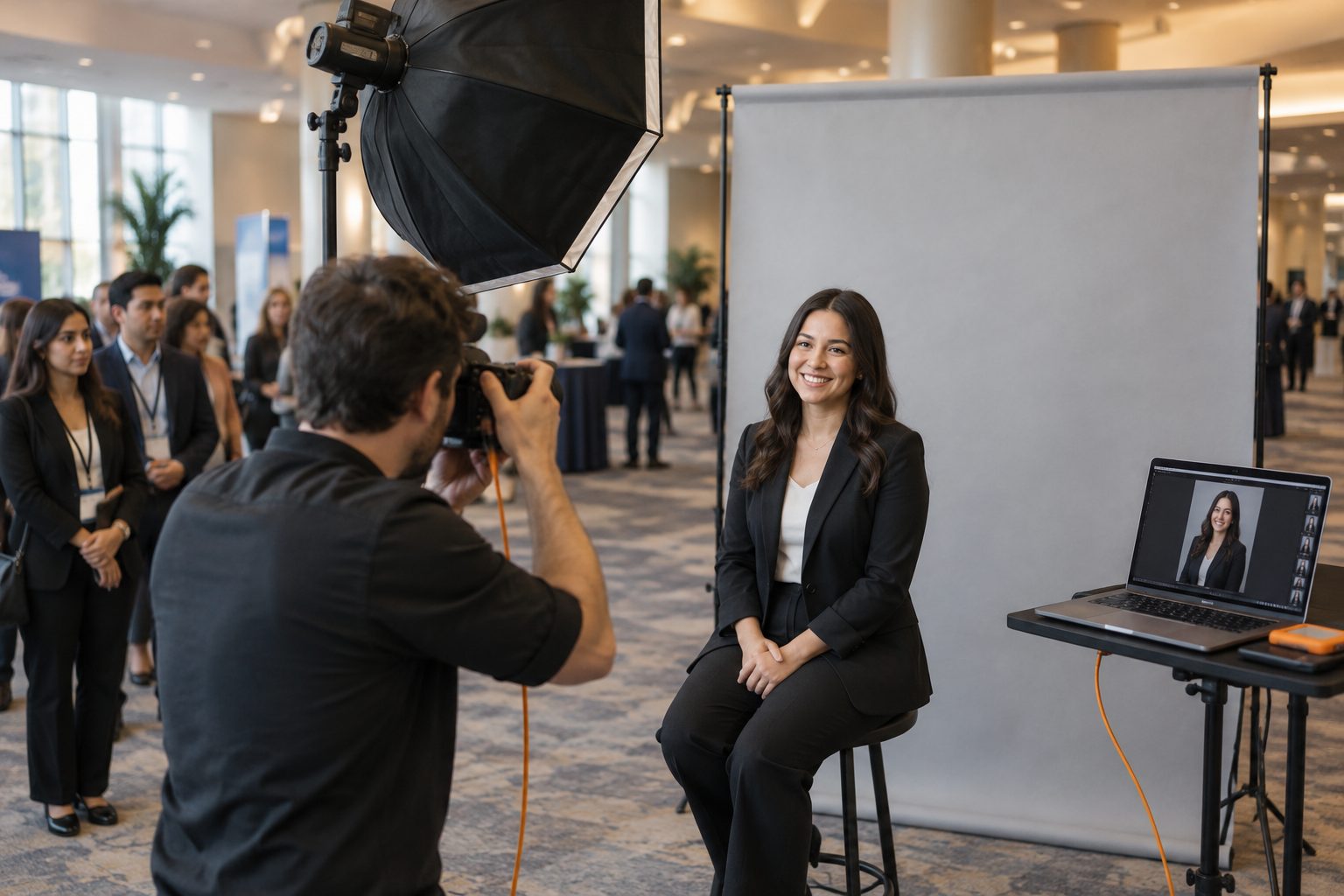
If you shoot headshots on site, the tether is the heartbeat of the day. Every frame goes from the camera to a laptop, the sitter sees it on a screen, and you decide on the spot whether you have the shot. When the tether drops, the line stops.
We've tethered hundreds of headshot sessions in offices, hotel ballrooms and conference halls. This is our honest take on the tools, judged on what matters at a fast headshot day: stability, speed to screen, file naming, and how easily you can show sitters their shots.
The short answer
- Most reliable all-rounder: Capture One. Fast, stable, works with the widest range of cameras, and its session workflow suits a day of many short sittings.
- Best if you already live in Lightroom: Lightroom Classic. It's included in the Photography plan and is good enough for many shooters, as long as your camera is on Adobe's supported list.
- Best for volume and naming: Smart Shooter. Barcode and QR scanning, flexible file naming and a Lightroom plugin make it a favorite with school and volume photographers.
- Best free option: your camera maker's own app (Canon EOS Utility, Nikon NX Tether, Sony Imaging Edge Desktop, Fujifilm X Acquire). Basic, but dependable with their own cameras.
What a headshot day asks of a tether
A portrait session can survive a tether hiccup. A headshot day with 80 people booked in four-minute slots can't. Before you pick software, be clear about what you need:
- It stays connected for eight hours. Cable bumps, sleeping laptops and auto power-off on the camera are the usual killers. Good software reconnects without a restart.
- Frames hit the screen in a second or two. Sitters relax when they can see what you see. A long wait for each preview kills the energy.
- Files are named in a way you can trust later. If you can't tell whose frames are whose at 9 pm, you'll spend the evening matching faces to a spreadsheet.
- You can show and narrow down on the spot. Ideally the sitter picks while they're still in front of you, so you never chase selections afterwards.
- It saves to a plain folder. Every capture app writes files to disk. That folder is what other tools, backups and delivery services can hook into.
The tools compared
| Software | Platforms | Cameras | Cost | Best for |
|---|---|---|---|---|
| Capture One | Mac, Windows | Canon, Nikon, Sony, Fujifilm, Leica and more | Subscription or license | Stability and speed, studio-style sessions |
| Lightroom Classic | Mac, Windows | Selected Canon, Nikon, Sony and Leica models | Adobe Photography plan | Photographers already in Lightroom |
| Smart Shooter | Mac, Windows | Most Canon, Nikon, Sony, Fujifilm and others | One-time license, two editions | Volume work, barcode naming, multi-camera |
| Canon EOS Utility | Mac, Windows | Canon | Free | Canon shooters on a budget |
| Nikon NX Tether | Mac, Windows | Recent Nikon Z and DSLR bodies | Free | Nikon shooters on a budget |
| Sony Imaging Edge Desktop | Mac, Windows | Sony | Free | Sony shooters on a budget |
| digiCamControl | Windows | Many Canon and Nikon models | Free, open source | Windows tinkerers |
Camera support changes with every release, so always check the maker's current supported-camera list for your exact body before a paid job.
Capture One
Capture One built its reputation on tethered studio work, and it shows. Images arrive quickly, the connection tends to survive long days, and the Next Capture Naming settings let you build file names from the session, a counter and a custom text field you can update for each sitter. Live View and camera control from the laptop are solid, and you can apply a style to every incoming frame so sitters see a polished preview rather than a flat RAW.
The trade-offs are cost and a learning curve if you come from Lightroom. If tethering is a big part of your income, it's usually worth both.
Lightroom Classic
Lightroom's tether lives under File > Tethered Capture > Start Tethered Capture. You set a session name, a naming template and a destination folder, and incoming frames land straight in your catalog with your develop preset applied. For many headshot shooters, that's the whole appeal: no second app, no import step, everything in one catalog.
The well-known downsides are camera support (if your body isn't on the list, it simply won't connect) and the dreaded "No camera detected" on some setups. We've written a separate Lightroom Classic tethering guide with the fixes that work for us.
Smart Shooter
Smart Shooter is the quiet favorite of volume photographers. It supports a broad range of cameras, can run more than one camera at once, and can scan barcodes or QR codes to name files automatically, which is gold when you're shooting a long list of people. A Lightroom plugin lets you use it as the tether engine while editing in Lightroom.
It's less pretty than Capture One and has more settings than most people need, but for a line of 200 sitters it's hard to beat.
The camera makers' free apps
Canon EOS Utility, Nikon NX Tether, Sony Imaging Edge Desktop and Fujifilm X Acquire all do the core job: control the camera from the computer and save each frame to a folder. They don't catalog, style or rename as cleverly as the paid tools, but they're free, they're made by the people who made your camera, and they're often the most stable option for very new bodies.
Pair one with a simple viewer, or with a tool that watches the save folder, and you have a dependable budget setup.
Our recommendation for headshot days
If you're starting out, use what you already own and test it hard at home: a free maker app or Lightroom Classic, a quality cable and a full rehearsal with a friend in the chair. When headshots become a regular part of your business, Capture One or Smart Shooter will repay the cost in fewer stalls and cleaner files.
Whatever you choose, the tether is only half of the day. The other half is getting each person's frames grouped under their name, letting them choose, and delivering. That's the gap that eats evenings and weeks.
Where ShootPick fits
ShootPick isn't a tether app. It sits next to whichever one you use and watches the folder it saves to. Each new frame lands under the sitter in front of you, they pick their favorite on an iPad at your station, and their photo arrives by email within a minute. No plugin, no catalog changes, and your originals stay exactly where your capture app put them. The integrations page has setup steps for each app above.
FAQ
What is the most reliable tethering software?
In our experience and in most photographers' reports, Capture One is the most consistently stable for long tethered sessions. Smart Shooter is a close second for volume work. A good cable and disabling camera auto power-off matter as much as the software.
Is there free tethering software?
Yes. Canon EOS Utility, Nikon NX Tether, Sony Imaging Edge Desktop and Fujifilm X Acquire are free from the camera makers, and digiCamControl is a free open-source option on Windows.
Can I tether into Lightroom Classic with any camera?
No. Lightroom Classic only tethers with the camera models Adobe lists as supported. If yours isn't listed, tether with the maker's app or Smart Shooter into a folder, and use Lightroom's Auto Import on that folder.
Do I need tethering software for headshots at all?
You can shoot to the card and review on the camera, but tethering lets sitters see their shots on a big screen, which relaxes them and lets you fix expression and posture on the spot. For on-site headshot days, we think it's essential.